Advanced Setup
Role mapping tells Aurora which Discord roles should have special permissions or behavior.
Examples:
Admins can use management commands
Mods can access moderation tools
VIPs might get different interactions
regular members get default behavior
This helps Aurora understand who is who in your server.
1. CHECK YOUR DISCORD SERVER ROLE NAMES
Before editing your config, go into Discord and look at the exact names of your roles.
Examples:
Admin
Moderator
VIP
Member
Stream Alerts
These names must match your config exactly, including spacing and capitalization if your code expects it.
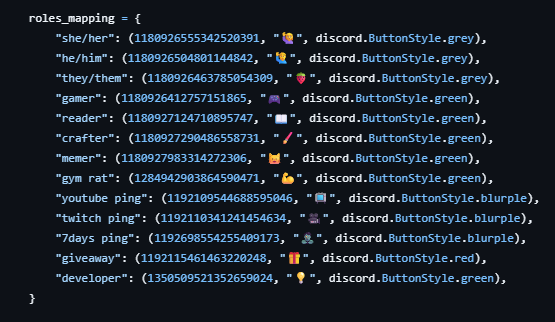
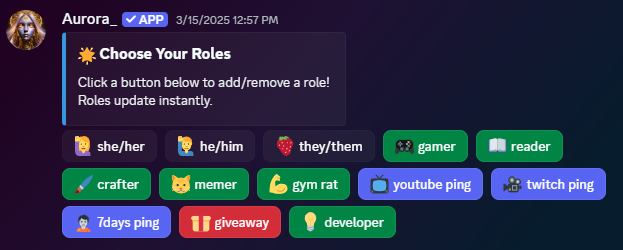
2. Update THE ROLE CONFIG FILE “roleassign.py” with your server roles
Update with roles in your server, default selections below
3. SAVE AND DOUBLE-CHECK SPELLING
Role mapping issues are often caused by:
typos
extra spaces
using the wrong role name
forgetting quotation marks in config files
Take an extra minute here. It saves LOTS of frustration later.
4. TEST ROLE LOGIC Later
Once the bot is online, you can test this by:
giving yourself a mapped role
If it doesn’t, the first thing to check is your role config.
Quick Recap - what did we do?
Identified your Discord role names
Added them to Aurora’s config
Set up permission logic